It is the 19th of the month. You have three subcontractors waiting on payments, your bookkeeper is chasing the Accounts Office Reference number, and your CIS return is due in three days. Miss the 22nd deadline and HMRC charges a penalty starting at £100 – even if the amount owed is small.
This guide walks through every step of paying CIS online: setting up your Government Gateway account, choosing a payment method, understanding monthly and quarterly deadlines, and what to do if you miss one.
What Is a CIS Payment?
A CIS payment is the tax deduction that a UK contractor withholds from subcontractor invoices and pays to HMRC under the Construction Industry Scheme. The standard deduction rate is 20% for registered subcontractors or 30% for unregistered ones. Contractors must submit these deductions to HMRC each month using their Accounts Office Reference Number (AORN) – a 13-character code formatted like 123PA01234567 that links the payment to your PAYE account. You can find your AORN on the letter HMRC sent when you registered, or in your Government Gateway CIS account.
Who Needs to Pay CIS Tax?
Under the CIS scheme, contractors are responsible for deducting tax from payments made to subcontractors and paying that tax to HMRC. If you are registered as a CIS contractor, you are required to:
- Verify the status of each subcontractor (registered or gross payment status)
- Deduct 20% or 30% from payments as required
- Submit a monthly CIS return detailing payments and deductions
- Pay the deducted tax to HMRC by the deadline
Subcontractors do not usually make CIS payments themselves, unless operating as a limited company eligible for CIS repayment offsets.
Registering and Setting Up Your Online CIS Account
Before you can make payments, you need access to HMRC’s online CIS system.
Step-by-step setup:
- Register as a CIS contractor via HMRC (if not already registered)
- Set up a Government Gateway account with administrator-level access
- Add PAYE for Employers to your account (CIS is managed under this area)
- Navigate to “Manage Taxes” and ensure PAYE & CIS is enabled
- Once set up, you’ll be able to:
- File CIS returns
- View liabilities
- Make payments directly to HMRC
Monthly and Quarterly CIS Payment Deadlines
HMRC requires CIS payments on either a monthly or quarterly basis, depending on your average liability.
Monthly Payment Deadlines:
- Paper or phone payments: by the 19th of each month
- Electronic payments: by the 22nd of each month
Example:
- Tax month: 6 April to 5 May
- Payment deadline: 19 May (paper), 22 May (electronic)
Quarterly Payments:
If your total monthly liability for CIS, PAYE, and National Insurance averages under £1,500, you may opt to pay quarterly.
Quarterly periods end on:
- 5 July
- 5 October
- 5 January
- 5 April
You must still file CIS returns monthly, even if you pay quarterly.
How to Pay CIS Online
Contractors can choose from multiple payment methods on GOV.UK. All methods require your 13-digit Accounts Office Reference number, formatted like 123PA01234567.
1. Paying via Your HMRC Online Account
- Login through your Government Gateway
- Go to Manage Taxes > PAYE & CIS
- Select “Make a Payment”
- Follow instructions to pay using your chosen method
2. Paying by Bank Transfer
Use the HMRC bank details:
Account Name: HMRC Cumbernauld
Account Number: 12001039
Sort Code: 08-32-10
Reference: Your 13-digit Accounts Office Reference
Payments usually clear the same-day, but allow extra time before the deadline.
3. Paying by Debit or Credit Card
- Visit the HMRC Card Payment Portal
- Select “No, pay without signing in”
- Enter your 13-digit reference and card details
- Allow 2-3 days for processing
4. Direct Debit
Set up a direct debit from your HMRC account so payments are made automatically each month. Note that direct debits need to be in place before the due date.
If You Miss a CIS Payment Deadline
If you fail to pay on time, HMRC may issue a penalty based on how late the return or payment is:
| Time Late | Penalty |
| 1 day | £100 |
| 2 months | £200 |
| 6 months | £300 or 5% of the CIS liability (whichever is higher) |
| 12 months | £300 or 5% of the CIS liability (whichever is higher) |
| Over 12 months | Additional penalty up to £3,000 or 100% of the CIS due |
Pro tip: If no payments were due that month, notify HMRC to avoid penalties by filing a nil return online or by contacting them directly. For details on what HMRC sends back to your subcontractors, see our guide to CIS statements.
What to Do If You Disagree With a Penalty
You can appeal CIS penalties within 30 days:
- Online: via your Government Gateway under the penalty notice
- By post: send a written appeal including your UTR and reference number to HMRC
- Appeals cannot be made by phone.
Pro tip: Keep a record of your submission for reference.
Simplifying CIS Payment Workflows
Without a system, CIS compliance means toggling between HMRC’s portal, your accounting software, and a spreadsheet of subcontractor deductions – hoping nothing falls through the cracks. With a construction-focused platform, the approved numbers flow straight from project to ledger.
The deduction and the payment to HMRC still happen in your accounting software or a CIS tool; our guide to CIS software compares them with current prices. Planyard is our product, and it does not file CIS returns or pay HMRC.
Many contractors use CIS-enabled accounting software like Xero or QuickBooks alongside Planyard to connect project-level approvals with back-office reporting.
"We had to get our accountant on board and interface it with Xero, so invoices hit the right job number. Now an invoice gets uploaded in Planyard, I sign it off, and it drops into my Xero payment schedule in three or four weeks – it’s perfect."
Read more
- Review and approve subcontractor valuations
Manage valuations based on contract terms and site progress, reducing errors and disputes. - Sync approved costs with your CIS-enabled accounting software
Ensure consistency between what is approved by commercial teams and what is recorded in accounting and payroll systems. - Centralise budget tracking and subcontractor documentation
Maintain a single source of truth for contracts, variations, payment records, and budget performance, all in real time. - Maintain audit trails for HMRC compliance checks
Keep a complete and accessible record of financial approvals, payment histories, and cost breakdowns – essential for tax and CIS inspections. - Monitor committed and actual costs against project budgets
Identify cost overruns early by comparing committed spend (including subcontractor packages) with real-time progress and invoicing. - Streamline variation tracking
Record and manage all scope changes and their financial impact in one platform, linking changes directly to project budgets and subcontractor valuations. - Improve cost forecasting and margin visibility
Access live cost-to-complete forecasts and profitability metrics across all active projects, supporting better cash flow planning. - Facilitate collaboration between commercial and finance teams
Reduce data silos by connecting project-level approvals with back-office financial processes, making month-end reconciliation faster and more accurate.
"Whenever an invoice comes to me through Planyard, I don’t need to waste time going back to the project manager to check if it's okay. I know it is, because they have already added it to the system and approved it before sending it through to finance."
Read more
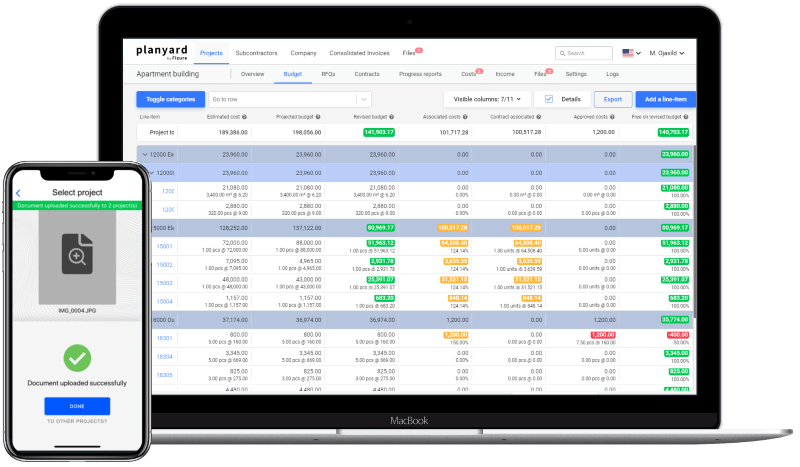
Keep your subcontractor costs under control
Planyard connects your subcontractor valuations, purchase orders, and invoices to your accounting software. Approved costs sync directly to Xero or QuickBooks – no double entry.