
Rather than list four months of updates release by release, we’ve followed them through a live project: estimate, budget, contracts, site work, invoices, and the report at the end. That’s the order the money moves in.
It starts with the estimate
TL;DR: Good prices now flow from estimates back into the budget code library, so the next estimate starts from a real price instead of a re-price from scratch.
Save to budget codes
Budget codes only worked one way. You could pull pricing into an estimate, but there was no way to send a good price back into the company library – so the same assemblies got re-priced from scratch, wherever the last spreadsheet happened to be.
Any line item or category can now go straight into the budget code library from inside the estimate, including everything nested underneath it. Pick the section it lands in, or add it at the root, and the source line stays linked to the new entry – so the next estimate starts from a real price, not a guess.
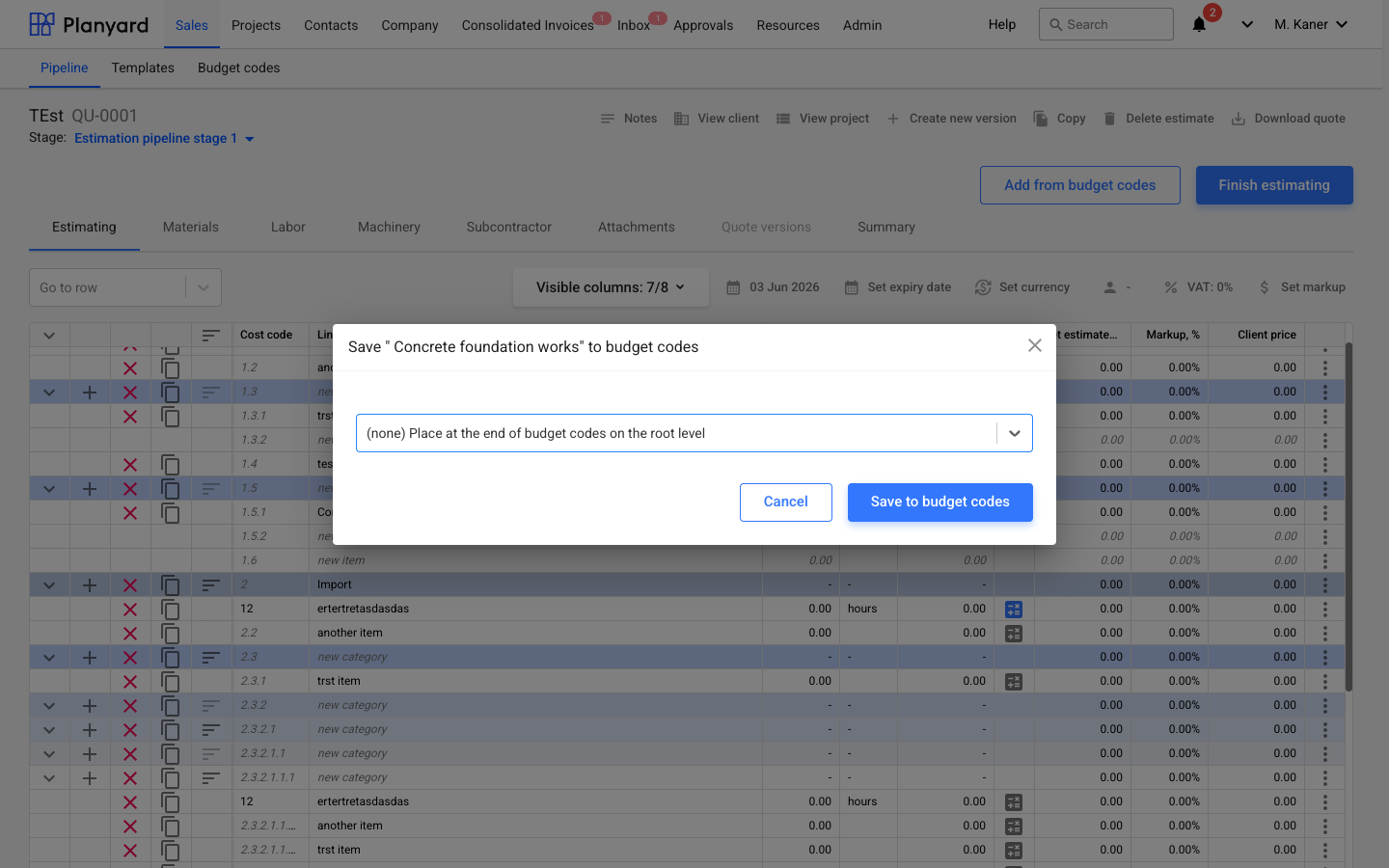
Importing the other way is more precise too. Bringing budget codes into a category now lets you narrow to one section instead of scrolling the whole library, so the library stays current without a separate cleanup step.
A line item table you can shape
The table itself is easier to shape too. Quantity, unit, price, contingency, cost, markup, client price, comment and material breakdown can each be shown or hidden, and the choice saves per user – so estimators only see the columns they use. Long names and comments open into a text box that grows with the content, so full spec notes stay readable instead of getting clipped, and the materials tab exports straight to Excel, ready to send to suppliers or drop into a tender pack.
Add from budget codes now works for anyone with permission to edit an estimate, not just admins, so estimators aren’t stuck waiting on someone else to pull pricing in.
Then the budget has to get into Planyard
TL;DR: A budget that arrives in any spreadsheet format can be live in Planyard the same day, without an afternoon of manual column mapping.
The Budget Converter
When a budget comes from somewhere else, whether that’s a client, a contractor or another system, getting it into Planyard has meant doing the mapping by hand. Work out which column is what. Find where the margin sits. Decide how the client billing should be structured. Then build two import files. On a few hundred line items that’s an afternoon gone, and it doesn’t matter how well the format matches what Planyard expects.
A new chat based assistant does that work instead. Upload the spreadsheet from the company menu, in whatever layout it already arrived in – no reformatting it to fit Planyard first. Whatever way you bill the client – margin on every line, by trade, in fixed stages, or a source that already lists cost and client price separately – the assistant matches it, instead of forcing your budget into one shape. It only stops to ask when something’s genuinely unclear; otherwise it states what it assumed and finishes the job.
What you get back is two ready-to-import files: the budget with cost and billing columns, and the estimate with markup per line. Not raw data you still have to clean up yourself.
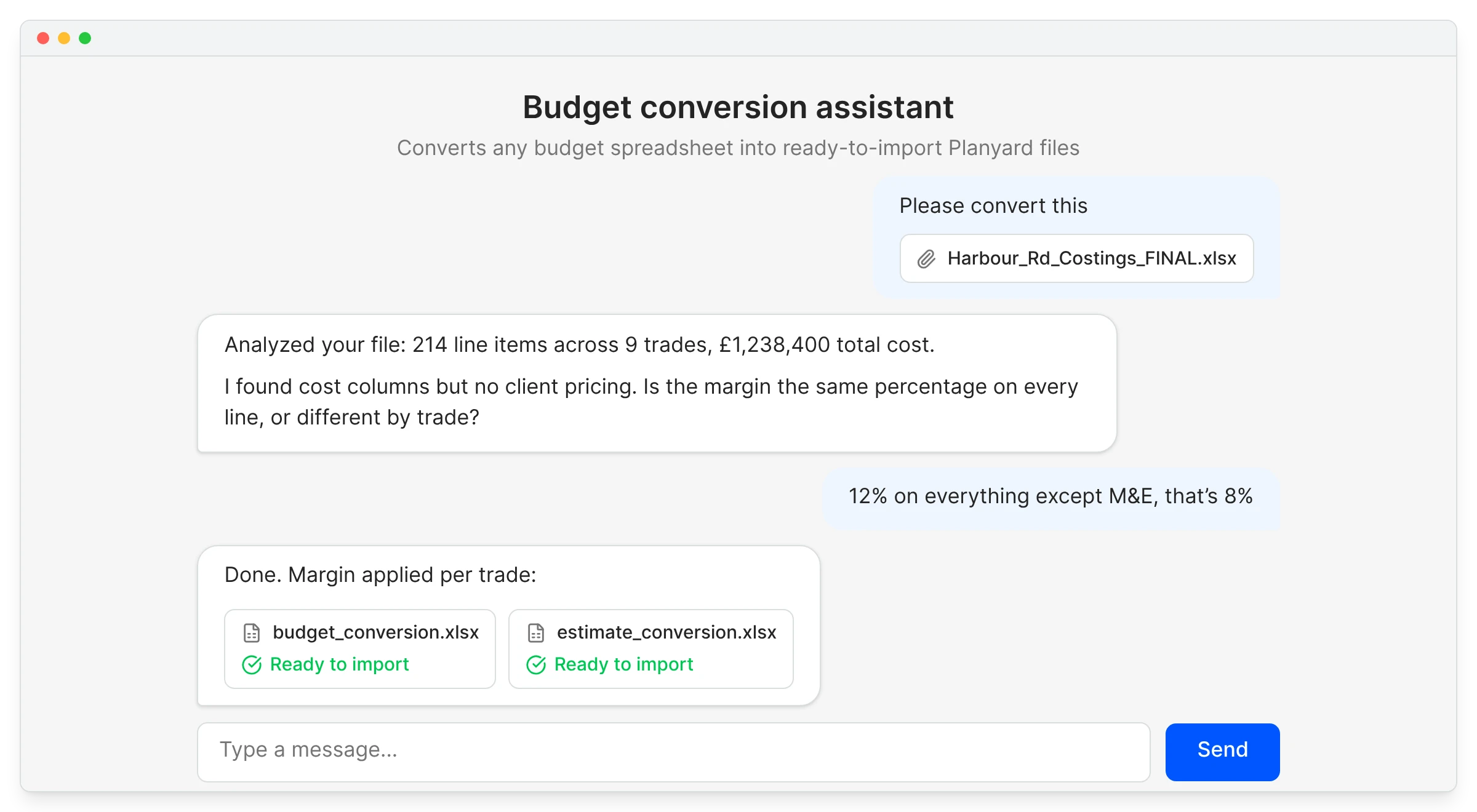
That mapping is usually the main thing standing between winning a job and having it live in Planyard. Take it out and you can start tracking commitments the same day you win the job, on a project that’s already mid-build, not just the ones starting from scratch.
Get your next budget into Planyard the day you win it
Upload the spreadsheet you were sent and start tracking commitments against it the same afternoon.
Committing the work: contracts and subcontracts
TL;DR: Contracts stay a clean record of what’s actually owed – setup mistakes can now be deleted instead of papered over with variations.
Contract line items used to be close to one-way once created. Scope changes constantly, and if the only safe way to fix a mistake is to raise a variation against a line that should never have existed, the contract stops being a clean record of what’s actually owed. It ends up documenting your setup mistakes instead of the job.
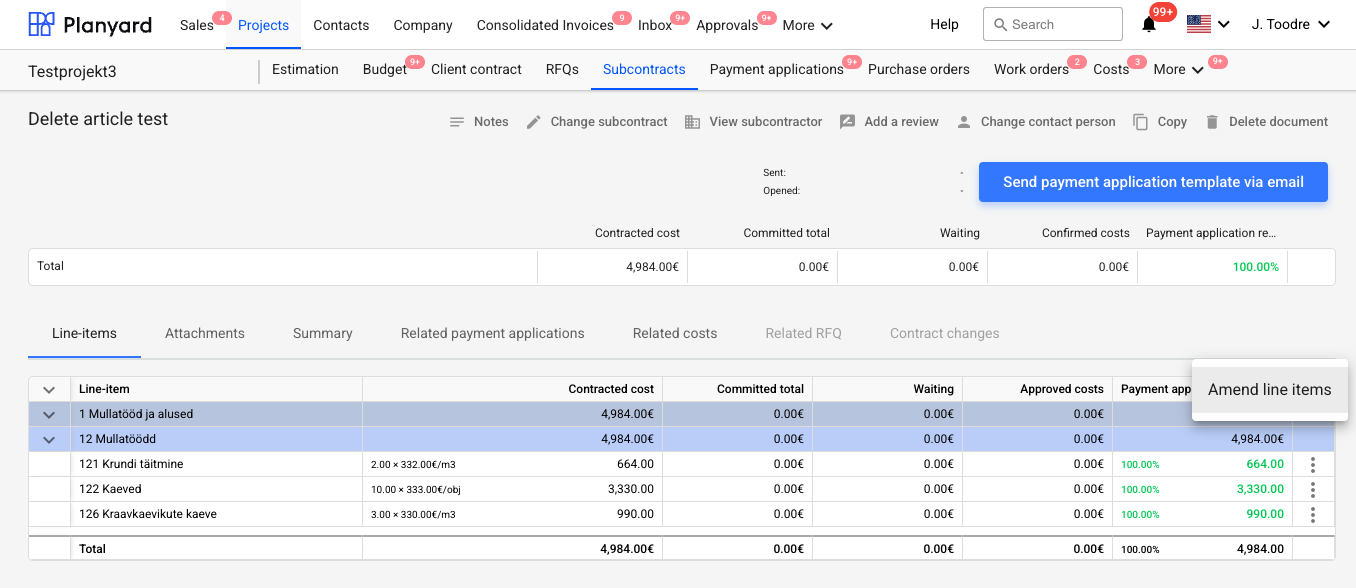
Any client contract line item can be deleted now, not just variations – and the same goes for subcontractor contracts, variations included – so a line added by mistake doesn’t have to live in the agreement forever. Deleting is only possible while the line isn’t connected to a progress report or payment application, and only for users with edit access. Subcontracts can also be amended with extra budget line items without sending the agreement back through the work approval workflow, so adding scope doesn’t mean re-approving the whole subcontract.
A new Replace item action in purchase orders, RFQs and contracts lets you point a line at a different budget line without rebuilding it – the sub-rows you’ve already built underneath come along. And line item ordering is consistent across every document type now: regular articles follow your order, and variations group after them by creation date, so the contract reads the same way in every view, including the client-facing one.
Two smaller ones: purchase order reference numbers stay put when you edit a PO that’s already gone out, and PO email subjects now include the project code and name.
On site: work orders and labour
TL;DR: Your own crew’s hours now turn into approved, budget-linked costs the same way subcontractor invoices do, instead of being worked out separately after the fact.
Work order terminology, defaults and auto-fill
Work order terminology now matches how you already talk about your workforce, and the fields you’d normally retype from the budget fill themselves in.
“Unit price tasks” are now hourly rate tasks, “lump sum” and “fixed price” are now priced tasks, “internal team” is team on payroll, and “external workforce” is subcontractor or rent workforce – the same wording on every screen, with new work orders defaulting to subcontractor or rent workforce since that’s the common case.
Selecting a budget article copies the task name, price and unit across automatically, so you’re not retyping numbers that are already sitting in the budget. Task names also pre-fill with the line item code, and descriptions are editable directly in the table.
Labor cost approval
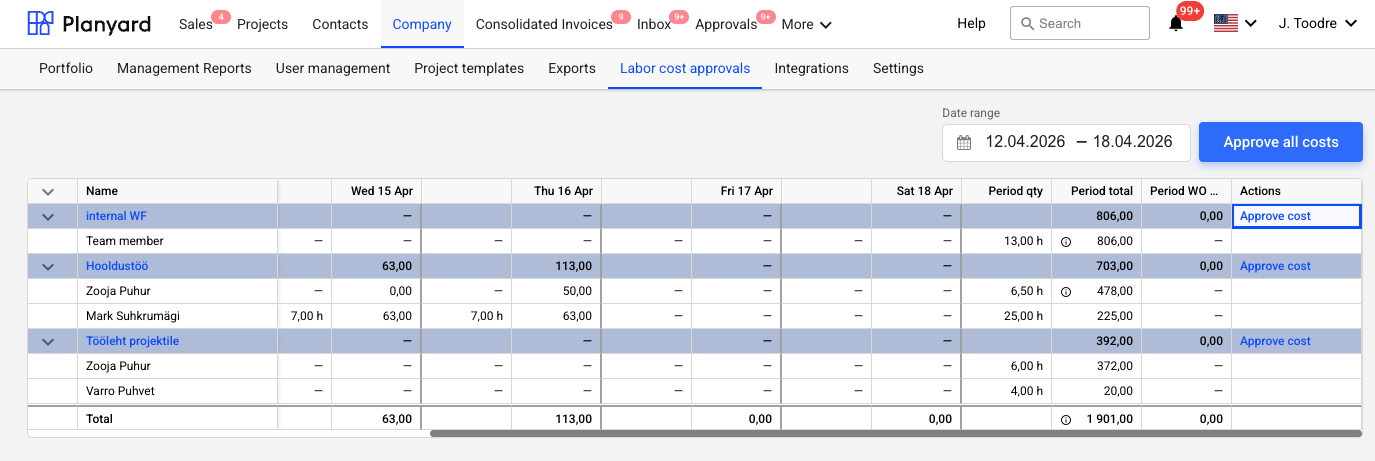
Subcontractor invoices have always gone through a review and approval step. Hours submitted by your own crew now follow the same route: a new Labor Cost Approval view under the Company menu turns pending timesheets into approved, budget-linked costs, instead of getting worked out separately after the fact.
The view lists every work order with pending timesheet submissions for a date range, workers underneath each one, so nothing waiting on approval gets missed. Hours and amounts are broken down by day, with period totals per work order and worker sitting next to the current approved cost total so you can compare. Approve one work order or all of them at once – a confirmation shows how many costs will be created and the total amount before anything commits.
Timesheet limits and task deletion
Entering a quantity beyond a priced task’s planned volume now turns the entry red and blocks submission, so overruns get caught before they hit the budget, not after. Mistaken tasks are easier to clean up too: project managers can remove any task unless its timesheet is already approved, and workers can remove tasks they added themselves before hours are logged against them. And approving a large batch of timesheets at once no longer risks producing incorrect work order totals.
"I can honestly say that the Planyard team has been fantastic and incredibly quick to respond. They are very progressive in how they listen to your challenges; even if a solution isn't immediately available, they will actually go back and tweak their phenomenal software to solve the problem for you."
Read more
See labour costs land against the budget
Work orders, timesheets and approved costs in one place, each linked to the budget line it belongs to.
Money in and out: invoices, valuations and accounting
TL;DR: Less retyping and less mis-posting: OCR reads the amounts off the page, drafts save themselves, and revenue can post to a different account than costs.
Invoice processing
OCR now pulls the amounts too. It already picked out the vendor, project, due date and PO from a scanned invoice – now it reads the net and VAT off the page as well, straight into the mapping form, and carries through to Peppol exports so the tax breakdown is right.
Consolidated invoice drafts save themselves. Refreshing the page or clicking away mid-mapping no longer costs you the work – the draft survives navigation and browser refreshes, and clears once you confirm the invoice.
A few smaller ones: project selection shows the code and the name together, so either one finds the project; cost Excel exports include a review status column; and credit notes take a negative total directly, so you can enter one exactly as it arrived instead of flipping signs by hand.
Payment applications
Summary rows now show percentage of contract value next to the money, on every payment application document – the number stakeholders usually look for first, without doing the maths themselves. There’s also a Singapore PDF template alongside the standard layout, with a structured cover letter in place of the invoice section.
Sales accounts and Xero
Plenty of contractors track material costs against one chart of accounts code but need revenue recognised under a different sales code when they invoice the client. Until now both came off the same field, so one side or the other was always posting to the wrong account.
Each project article can now carry a separate sales account alongside its cost account, set up side by side in the Account Map view – so if you use the same line items for both purchasing and client invoicing, each side posts to the account it belongs in. The income mapper checks that every selected article has a sales account before you submit, so problems surface in Planyard instead of at Xero.
Income records now carry a proper invoice date, visible everywhere income shows up: lists, summaries, budget detail, portfolio income and exports. Two fixes as well: currency rate lookups work again (the old provider had quietly stopped working), and invoice and due dates no longer shift by a day depending on your timezone.
Cashflow: weekly forecasts and a company wide interval
TL;DR: You can now see which week a payment lands in, not just which month, so timing crunches surface before they bite.
Cash flow is usually the first thing a finance manager checks: who gets paid, and when, so the business doesn’t run short. Monthly cashflow is fine for planning, but it hides the timing problems that actually cause trouble. The fortnight where three subcontractor payments land before the client valuation clears doesn’t show up in a monthly column.
Forecasts can run in ISO weeks now, with actuals and forecasts in the same structure as the monthly ones – so you can see exactly which week a payment lands in, not just which month. The portfolio cashflow view has an interval switcher for comparing monthly against weekly across all projects, and admins can set one interval for the whole company in Settings > Cash flow interval: every project follows it and nobody gets prompted when creating a forecast. It defaults to monthly, so nothing changes unless you change it.
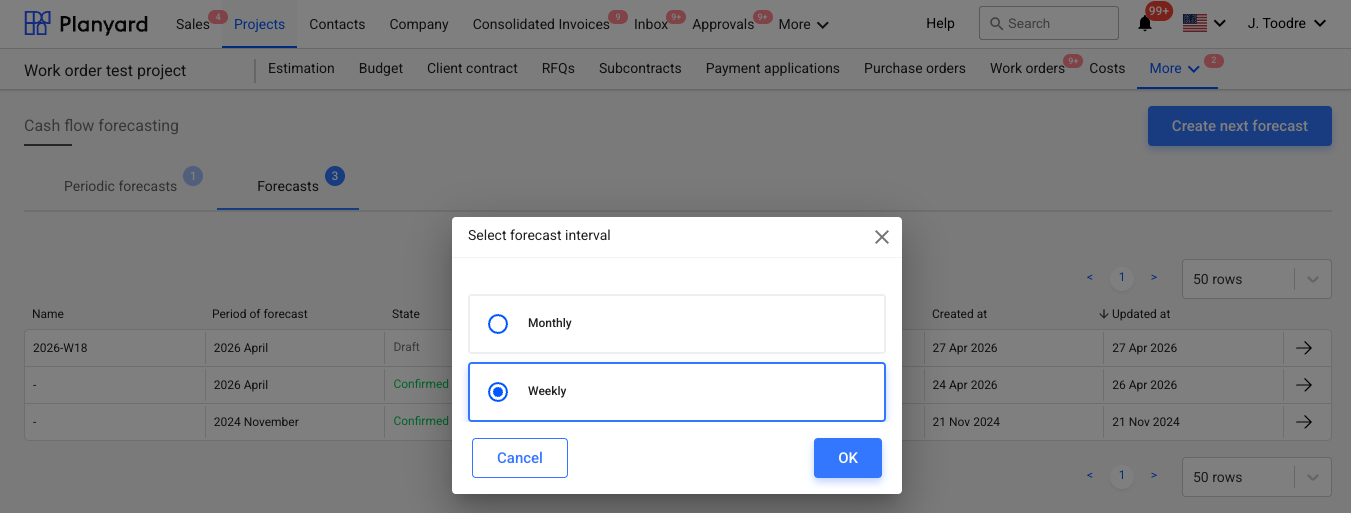
Exports come out the way you’re looking at the data – the XLSX uses whichever interval you have selected, and company level reports leave out projects that have opted out of cashflow. Also fixed: the Remaining column in non periodic cashflow exports was double counting the current month’s expenses.
And it ends in the report
TL;DR: Every project’s current margin – and how far it has drifted from the margin it was won on – is visible today, not after month-end.
Knowing where every project stands financially, right now, across the whole portfolio, used to mean waiting for someone to build the numbers by hand. These two updates close that gap: a CVR that reflects today’s numbers instead of last night’s, and a portfolio report that puts every project’s margin drift on one screen.
Live CVR numbers
The CVR report used to run off an overnight snapshot. If you entered a cost forecast at two in the afternoon, the report kept showing yesterday’s figure until the next morning. The numbers on screen disagreed with the numbers you’d just typed in.
It now pulls live for the current month and any month ahead of it. Budget entries, cost forecasts and contract values all show what’s actually in the system. Past months still come from the stored snapshots, so anything you’ve already reported on doesn’t move.
Management Reports
There’s a new Management Reports section in the company sidebar – the portfolio view a director would otherwise have to ask someone to build. Pick a month and every active project shows up in one table.
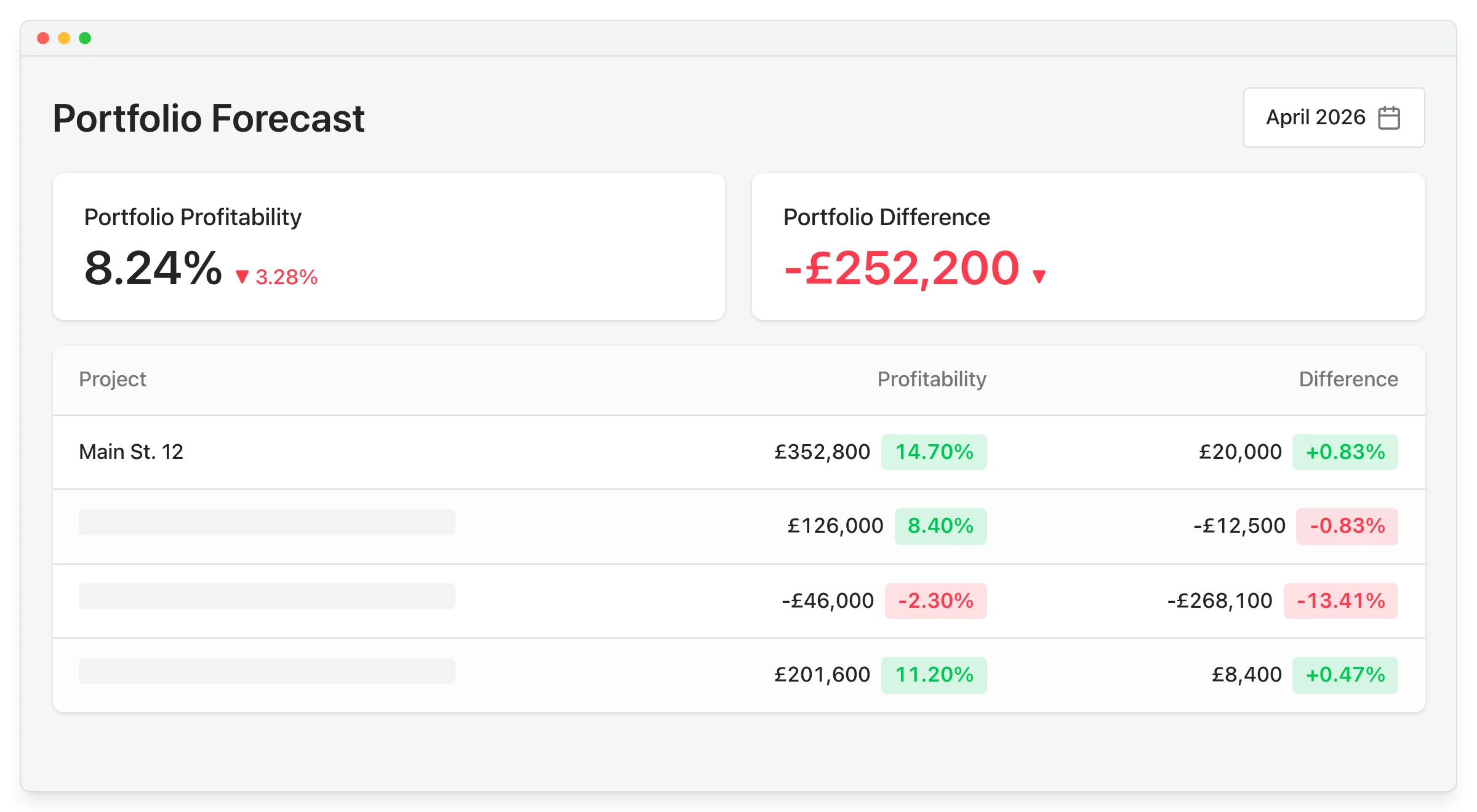
- Previous final P&L % and estimated final P&L %, colour coded against the month before.
- Movement value, so you can see what the profitability forecast shifted in money.
- Original margin when secured, and how far the project has drifted from it.
- A Detailed Forecast Report tab with full cost detail per project and a direct link into each one.
- Project Analytics has its own forecast report tab as well: CVR number, contract period, % complete, and an article level table of budget, costs to date, cost to complete and profitability.
Most finance teams can tell you where a project stands this month. Far fewer can tell you whether it’s slipping against the margin it was won on. Putting the original secured margin next to the current forecast, for every project at once, means drift shows up as a trend instead of a surprise at final account. You can also sort by movement and spend the meeting on the three projects that actually moved.
Know your project margin without waiting for month end
Live CVR figures and portfolio forecasts that update as your team works, not overnight.
Running Planyard: users, permissions and admin
TL;DR: Access is now set by what someone actually does, not by “full” or “limited” user, and new projects grant it automatically.
“Full user” and “limited user” never matched how companies actually think about access. Nobody describes a colleague as a limited user – they say she runs her own projects but shouldn’t see company settings. The roles screen is rebuilt around that.
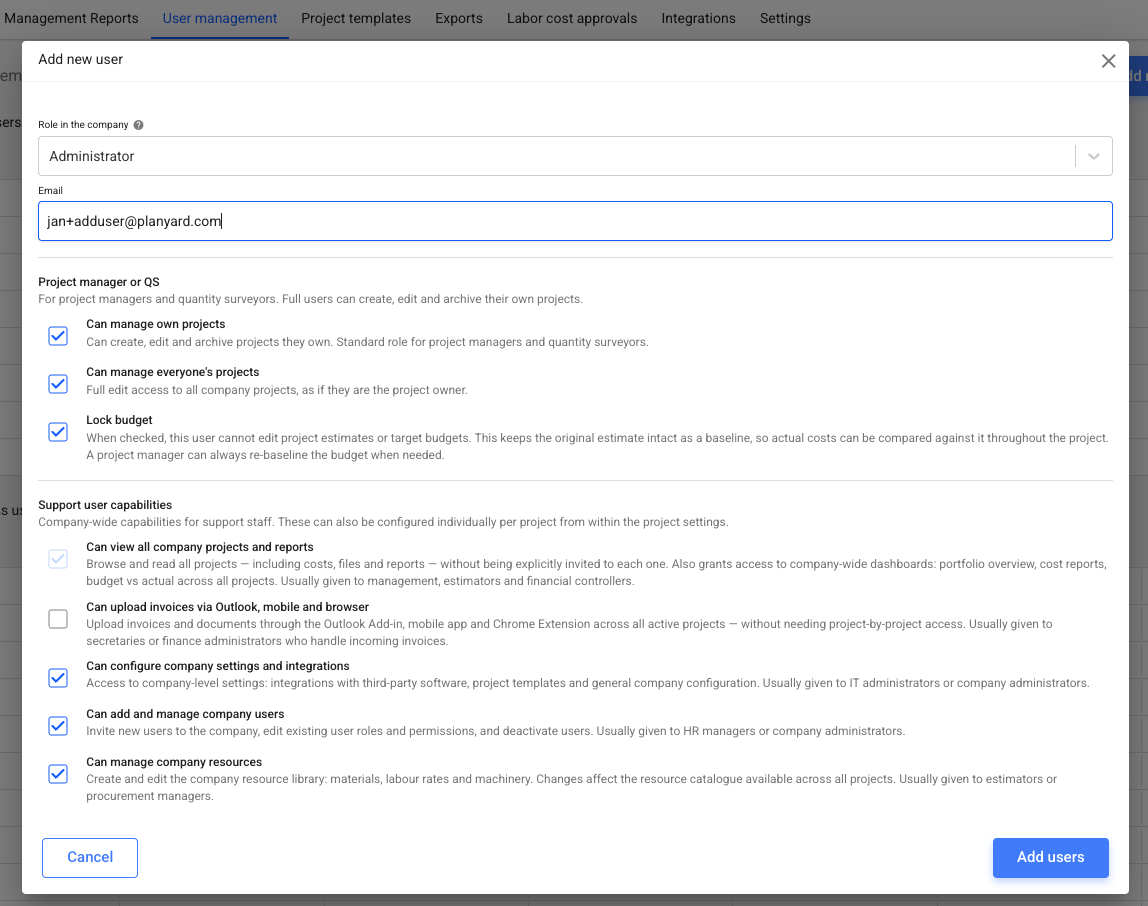
- The roles screen is rebuilt. Inviting someone no longer starts with picking “full user” or “limited user”. You see the permissions themselves as checkboxes in two groups, Project manager or QS and Support user capabilities, each with a plain English line about who normally needs it. Dependencies cascade on their own.
- Default project access per user. Set someone’s standard access once and every new non-confidential project grants it automatically, so a new QS has the right access from day one instead of someone remembering to add them project by project. It doesn’t reach back into projects that already exist.
- Bulk contractor merge. Where the same subcontractor exists under three spellings from three imports, admins can select them and merge into one. Contracts, costs, purchase orders, income and every other record move across to the surviving company. Audit notes record what moved, and the merge can’t be undone.
- Approval overrides leave a trail. When an admin bypasses a review step, the skip is recorded as a labelled note on the document.
Smaller fixes worth knowing about
- Help menu in the navigation bar. Report a bug, request a feature or open the knowledge base without leaving Planyard. Font size moved to Profile > Settings.
- When a manager overrides PO approval and sends the email themselves, supplier replies still reach whoever created the purchase order, not the manager who overrode it.
- Contracts can now be created on projects that only have project level approvers.
- Digital signature containers (.asice, .bdoc, .ddoc) count as documents even when non-documents are ignored on upload.
Discover what’s new in Planyard
The short version: the budget arrives without a day of mapping, a contract stays an accurate record of what’s actually owed, and the report at the end shows today’s figures instead of last night’s.
Almost everything above started as a customer request. If something in your workflow still takes longer than it should, tell your account manager. That’s how most of this list got written. If you want the version by version detail, it’s all in the release notes.
"We asked Planyard if they could add a pop-up where we could CC other email addresses when raising a purchase order – our site managers need to be copied in. They did it, and the turnaround was quick. That's quite unusual. Planyard actually listens to our queries and comes back with working solutions."
Read more
Start with one live project
Upload an existing budget and watch commitments, costs and the forecast update as the work happens.